
Shift
A work shift defines a specific time frame assigned to an employee for their work hours. It outlines the designated start and end times of an employee’s workday.
AttenDeep offers flexible shift management to accommodate both day and night shifts. Let’s walk through the steps to create a day shift.
Go to the AttenDeep HRMS Settings located at the top-right corner of the main navigation bar, then select Employee Shift. applications, schedule interviews, and track candidate progress in one place. You can assign roles, review resumes, and shift candidates through custom stages. The goal is to save time and improve collaboration between hiring managers and recruiters. AttenDeep ensures nothing slips through the cracks and helps you hire the best talent without hassle.
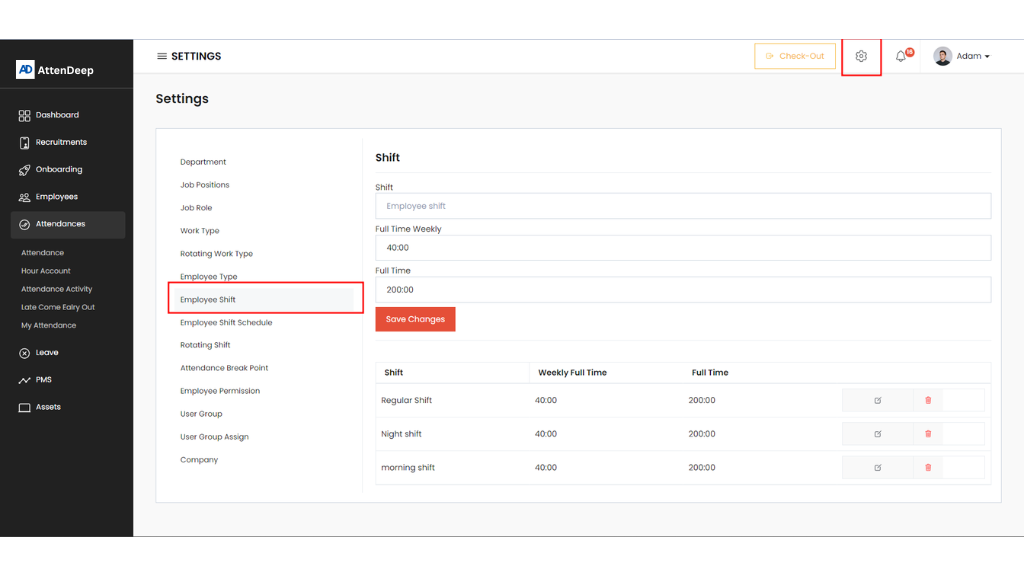
From here, you can define a template for a general shift.
- Shift: The title or name of the shift.
- Weekly Full-Time: The minimum number of hours an employee is expected to work per week under this shift.
- Full-Time: The minimum number of hours an employee is required to work per month under this shift.
Once the shift template has been created, you can now proceed to define a schedule for this shift.
To do that, go to Employee Shift Schedule, located just below the Employee Shift tab.
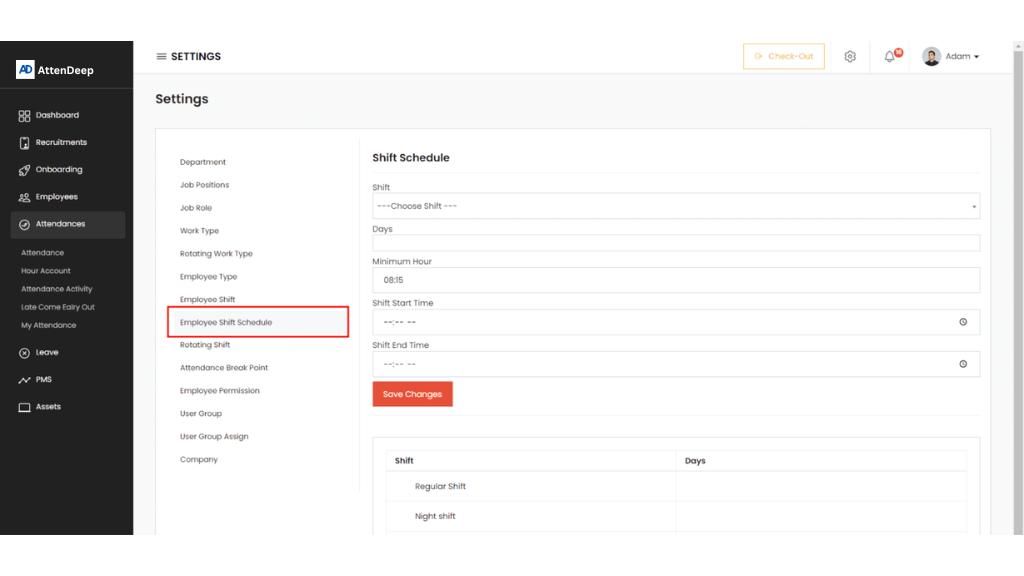
Next, select the days you want to include in the schedule.
Then, enter the start and end times for the day shift.
Once done, click the Save button to apply the schedule.
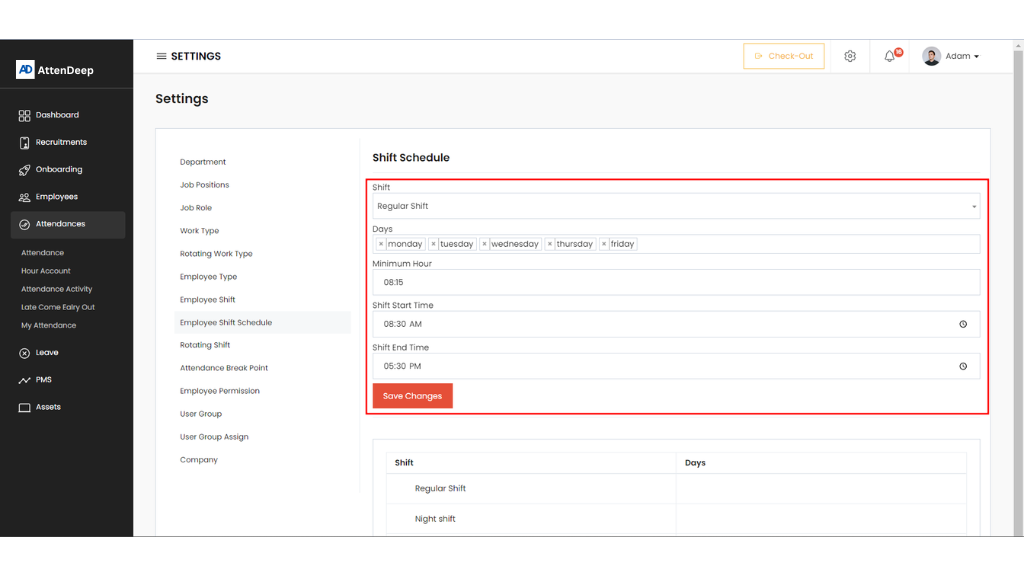
You're all set! From now on, you can assign the shift through the Employee Work Information section. With the shift schedule in place, the Attendance Module will automatically detect late arrivals and early departures using the check-in/check-out feature.