How Hiring Process Work in AttenDeep?
The Recruitment Module in AttenDeep empowers HR professionals to efficiently create and manage job postings, receive and evaluate resumes, schedule interviews, and monitor candidate progress throughout the hiring lifecycle. New recruitment entries can be easily created and managed using the intuitive recruitment pipeline view, allowing for faster and more organized handling of candidate applications and resume tracking.
Step-1 Creating Recruitment
To start a new recruitment process in AttenDeep, go to the “Recruitment” menu and select “Recruitment Pipeline.” In the top-right corner of the screen, click the “Recruitment” button to initiate a new hiring cycle. Fill in the necessary details to create and launch the recruitment entry.
Step-2 Creating Stages
After that, you can see a new tab is added corresponding to the recruitment. So click on the tab and add new stages.
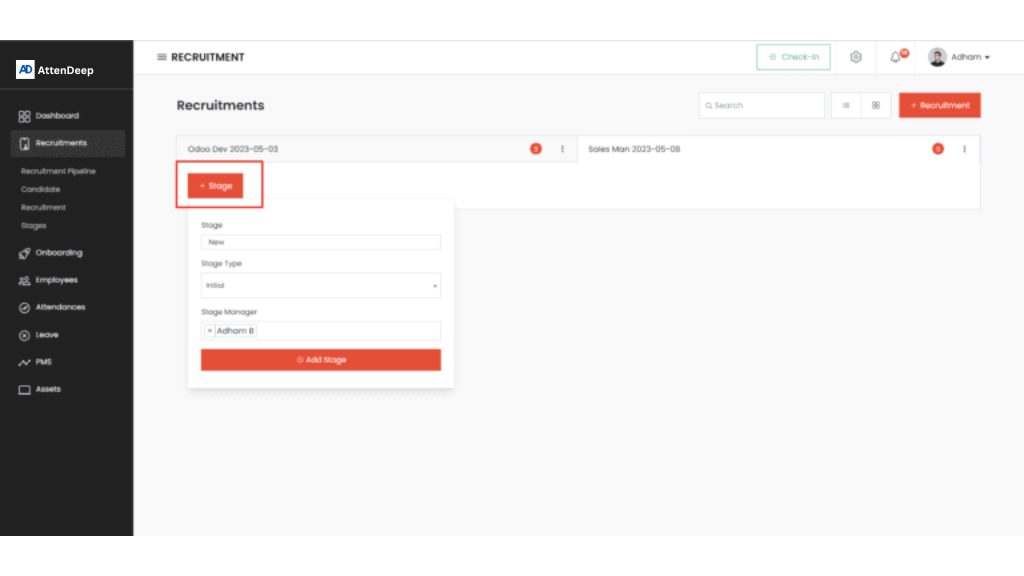
And fill in the stage information like the stage title, type, and managers. Put the stage type as initial if the stage is the first stage of your hiring process, if the interview kind of stage put the type as an interview if hired stage then put hired as the type and create all the stages that you wish to include.
Pipeline view
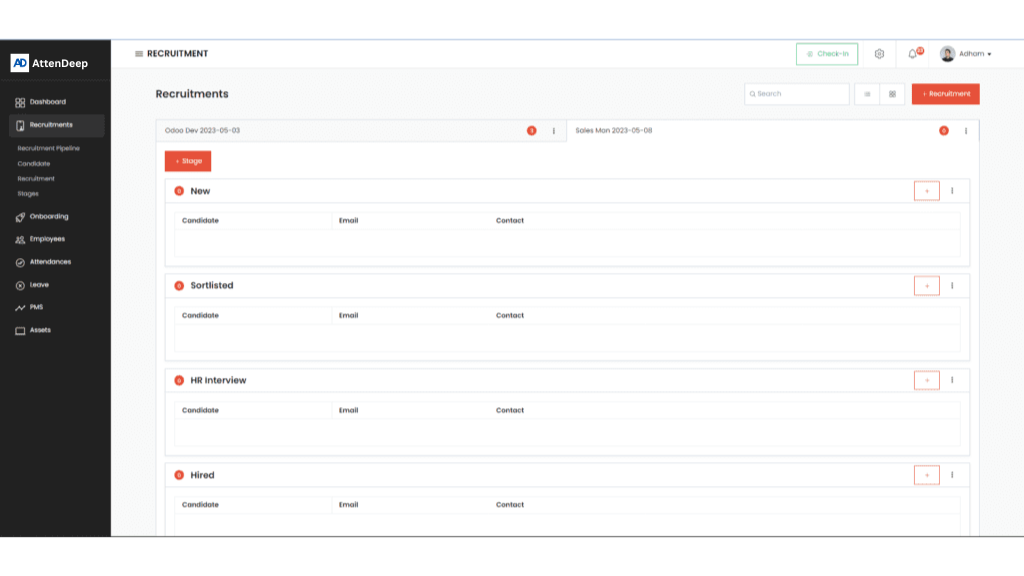
Step-3 Add Candidates and Manage
After creating all the stages now you are ready to add candidates to the stages. You can add directly to the stages by clicking on the plush icon at the right end of the stages or you can share the application form link
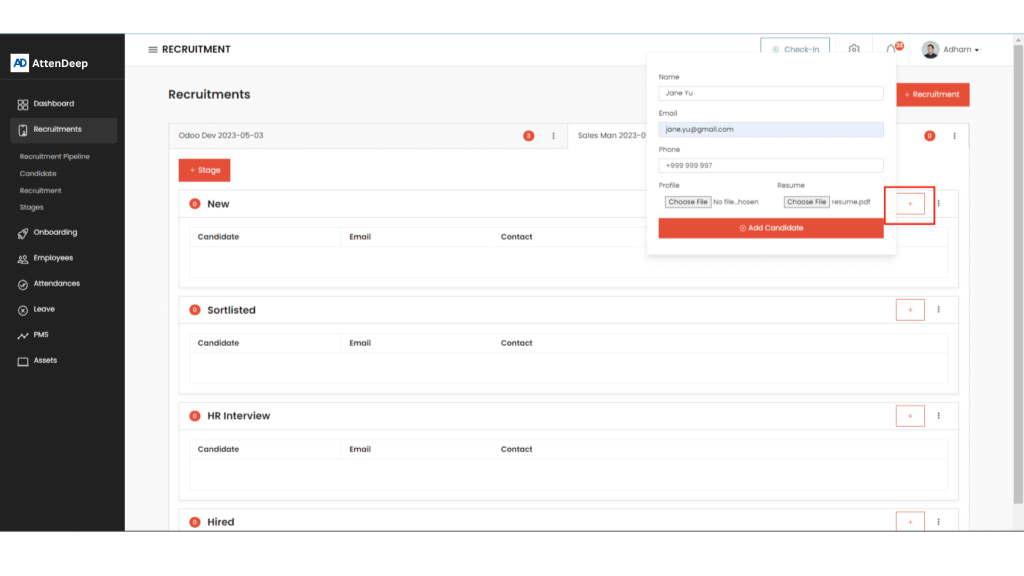
Application Form
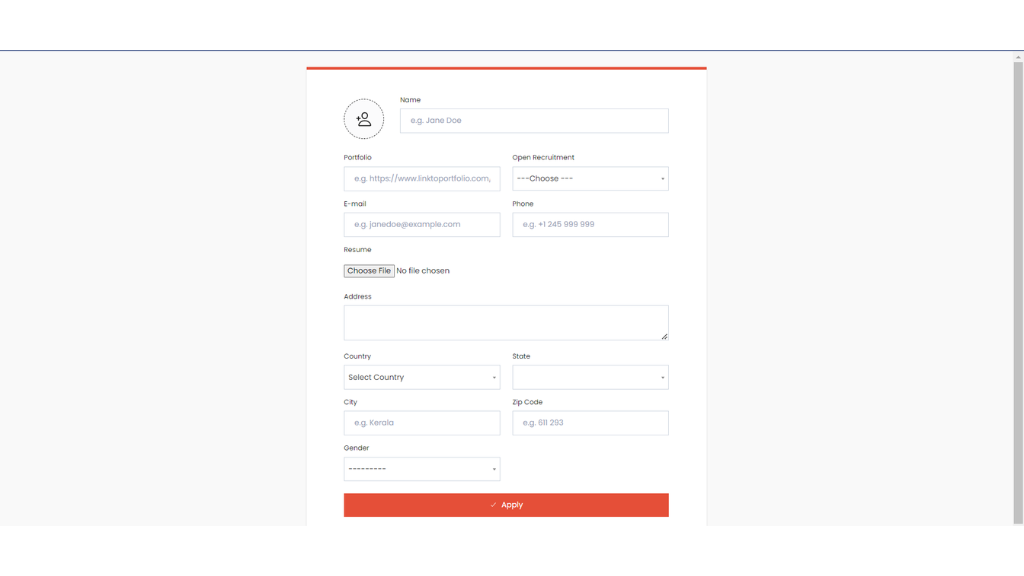
This allows candidates to actively participate in the open recruitment process. When a candidate submits their application through the recruitment form, they are automatically placed in the Initial stage. Therefore, before sharing the recruitment form, make sure to create a stage with the type set to “Initial” in AttenDeep.
Candidate Management
After adding a candidate, you can progress them through various stages of the recruitment pipeline using the filtering process. Additionally, you can evaluate and record the candidate’s performance using the Notes feature within the recruitment module.
Candidate Stage Update
You can update the stage of the candidate by updating the drop-down value.
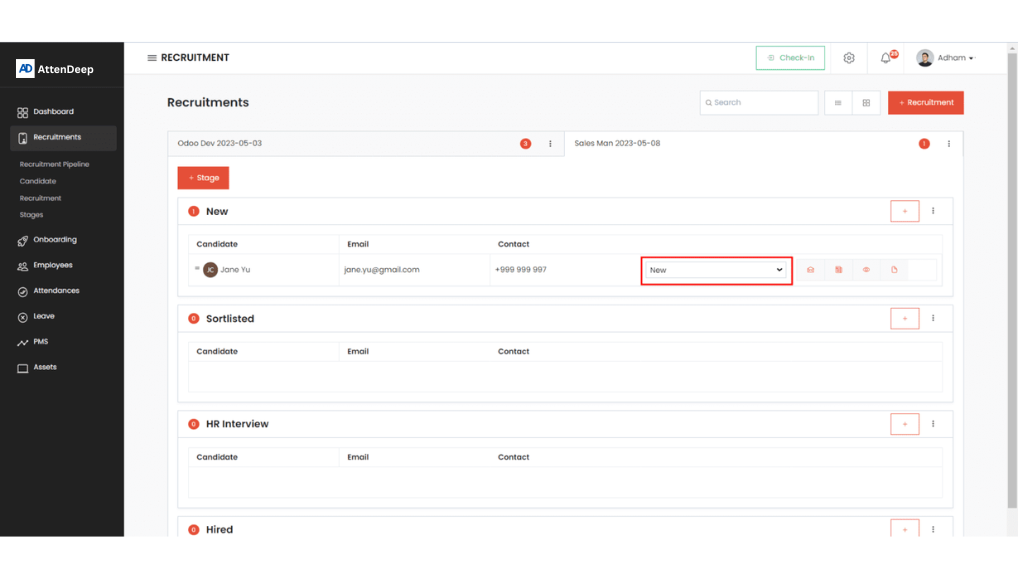
Also, you can update the candidate stage by drag and drop. When you use kanban view you need to drag and drop the candidate to the next stage.
Candidate Note or Remark
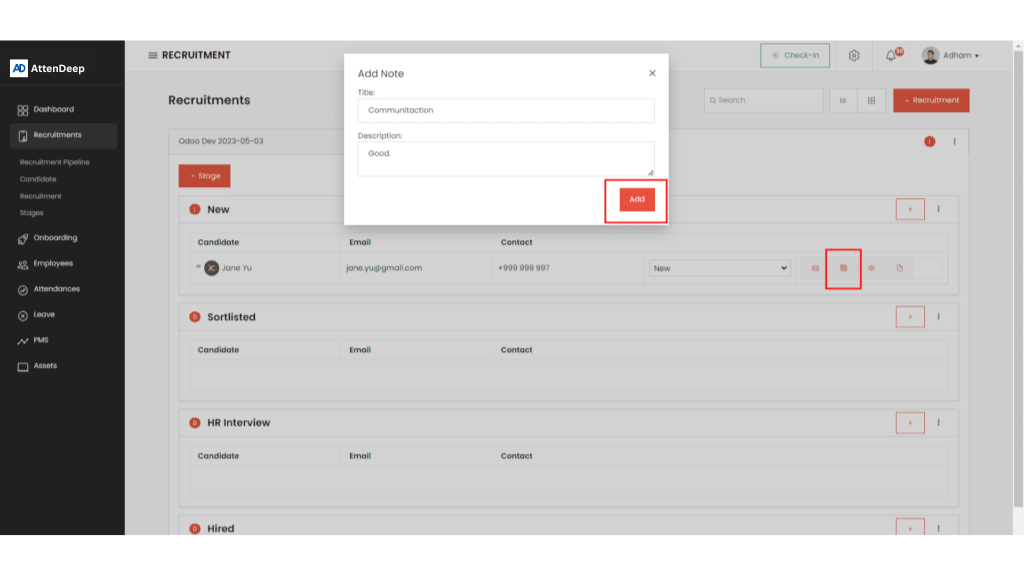
The Candidate Remark feature in AttenDeep is a valuable tool for tracking candidate-specific notes and evaluating performance. To add a remark, click the newspaper icon to open the form and enter your comments. Once submitted, remarks can be viewed anytime by clicking the eye icon.
Additionally, if a candidate qualifies for the next stage—or for any other relevant update—you can send an acknowledgment email using the mailbox icon available in the list view.
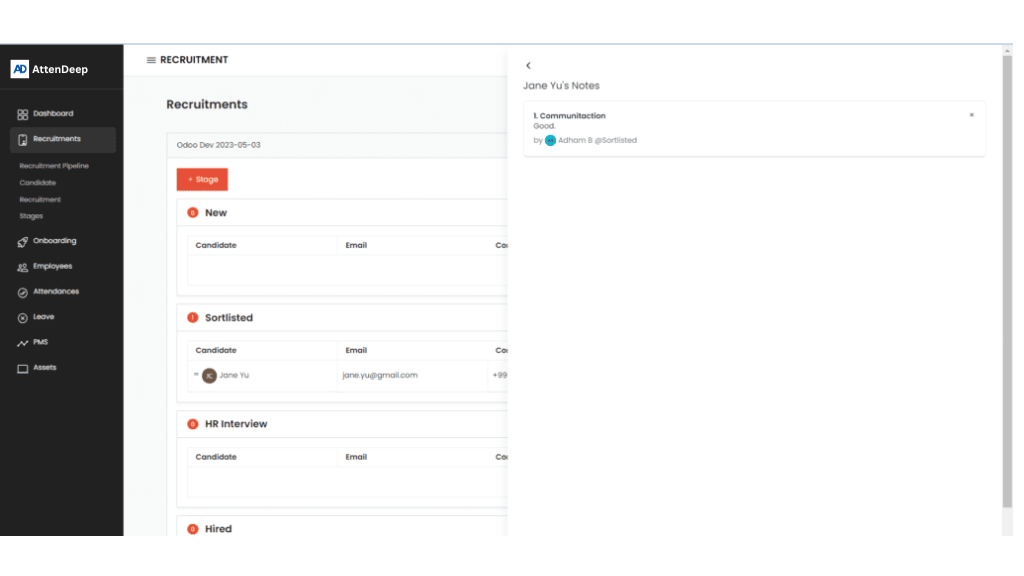
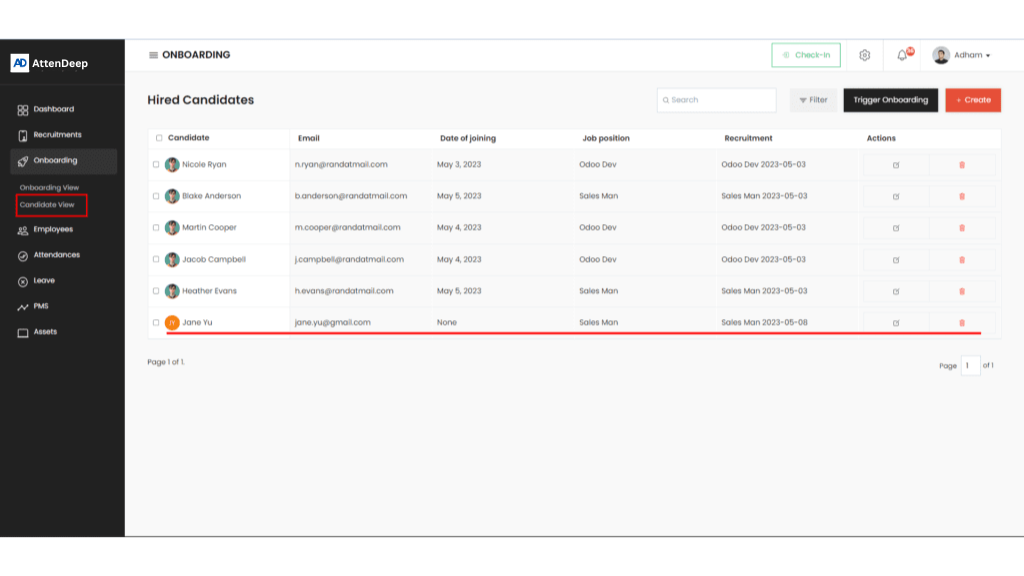
Through the process, once the candidate reaches the hired stage with hired type, the candidate is now available on the onboarding candidate view.
Go to menu Onboarding > Candidate View from here you can start the onboarding process