Assets
The Asset Management System is an integral component of our HRMS platform, designed to streamline how employees request and manage work-related resources such as computers, devices, and other essential equipment. It organizes assets into categories for easier tracking and ensures all asset requests follow a clear approval workflow. By simplifying asset allocation and visibility, the system enables faster access to tools for employees and more effective oversight for administrators, resulting in an organized and efficient resource management process.
Dashboard
Accessing the Asset Dashboard requires the appropriate permission level. Once inside, administrators can conveniently view and manage all information related to the Asset module.
- Asset tab (3): Shows the total number of assets recorded in the system.
- Asset Request tab (4): Displays requests awaiting review or approval.
- Assets in Use: Lists currently assigned assets across the organization.
- Pie Chart (6): Provides a snapshot of asset availability — available, unavailable, and in use.
- Requests to Approve (7): Lists pending approvals that can be processed directly from the dashboard.
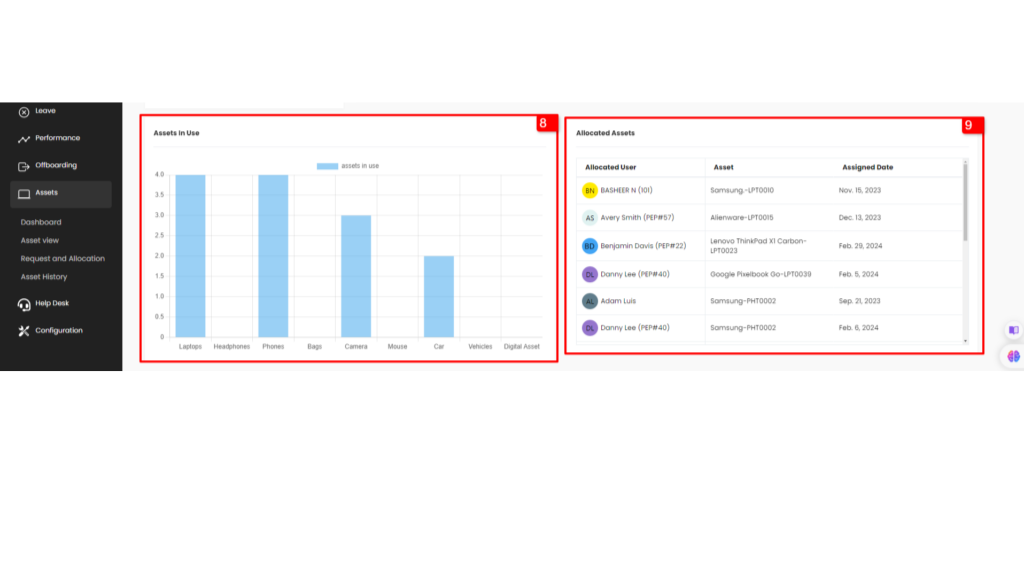
- Category Usage Chart (8): Breaks down usage by asset type for identifying trends.
- Allocated Asset Table (9): Displays which employees are using which assets, along with assignment dates.
Asset Category
Accordion Style Category
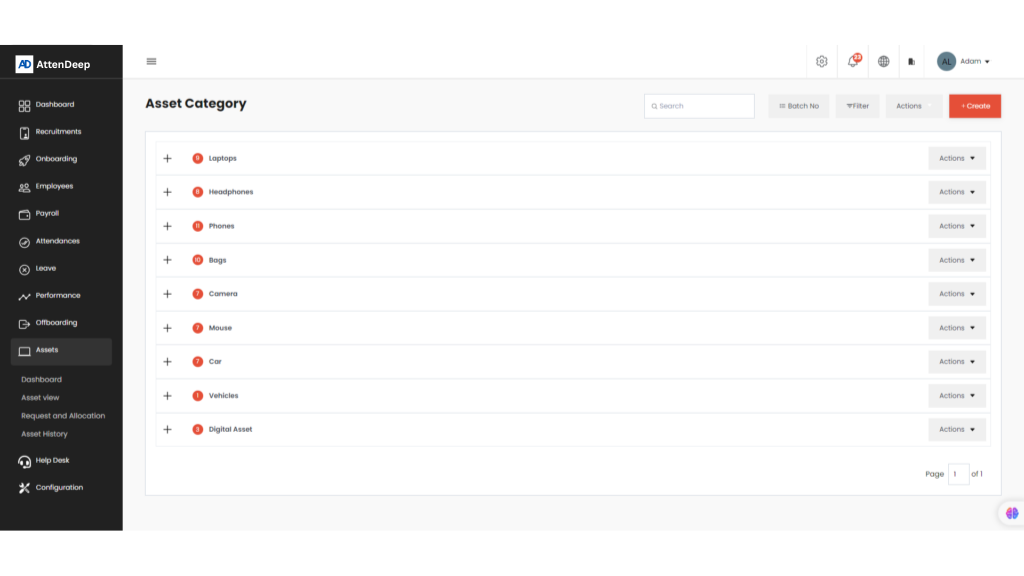
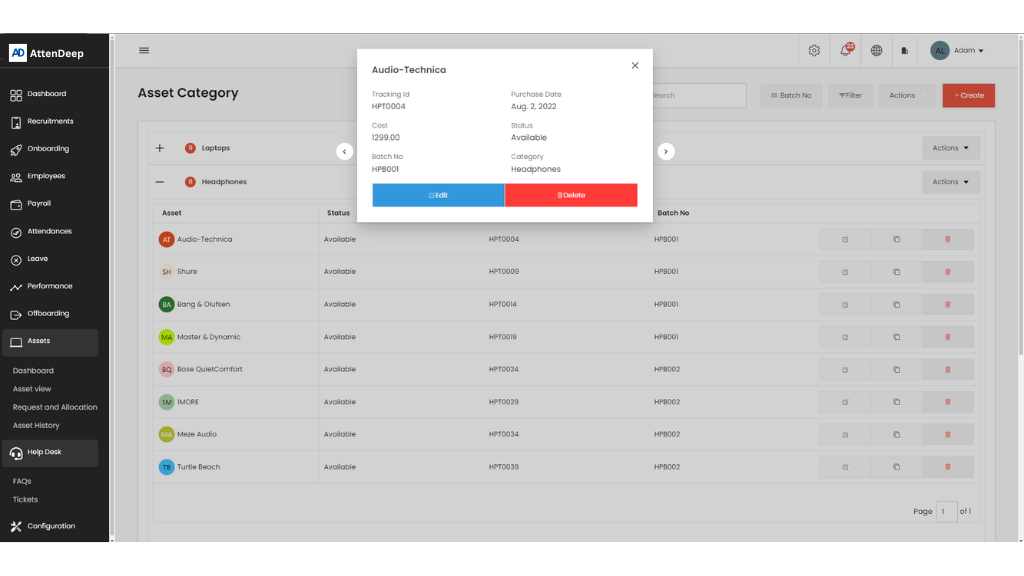
One standout feature of the system is its accordion-style layout for asset categories. This design enhances user navigation by placing each category in an expandable tab. When users click a category, it opens a table listing all assets under that group. This setup improves asset organization and makes it easy for users to locate specific items. Each asset entry includes detailed information and offers options to view, edit, or remove the item from the system.
Efficient Asset Management with Asset Import
The Asset Import functionality allows for bulk uploading of asset information from external sources, such as Excel files. This is particularly useful for adding large inventories quickly, especially during onboarding or asset audits. Users can include data such as name, purchase date, description, category, and batch number. This feature significantly cuts down on manual input and increases operational efficiency when handling a large number of items.
Streamlining Asset Management with Asset Export
To support external reporting and integrations, the Asset Export feature allows users to extract asset data into Excel format. Information like asset names, categories, and batch numbers can be exported for use in accounting, audits, or other inventory platforms. This function is invaluable for generating reports or backing up data outside the HRMS system.
Asset Request and Allocation
The Asset Management System interface is divided into three main sections for streamlined viewing:
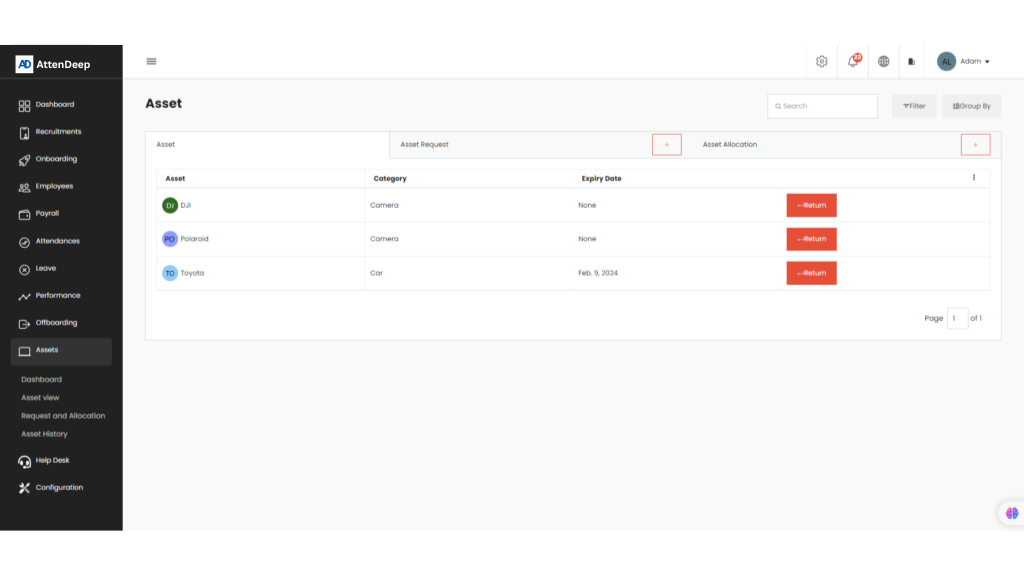
- Own Assets: Displays a personalized list of assets assigned to the current user. The interface also allows users to return items once they're no longer in use.
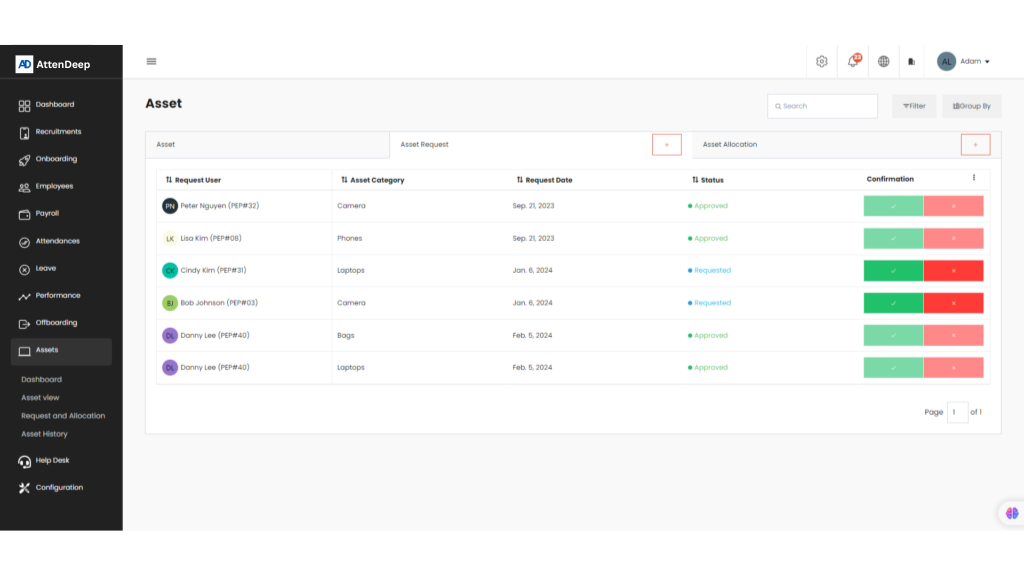
- Asset Requests: Shows all asset requests submitted by users. These can be new asset requests or modifications to existing assignments. Admins can approve or deny requests based on availability. New requests can be initiated using the plus (+) icon, and data views can be customized with sorting and filtering options.
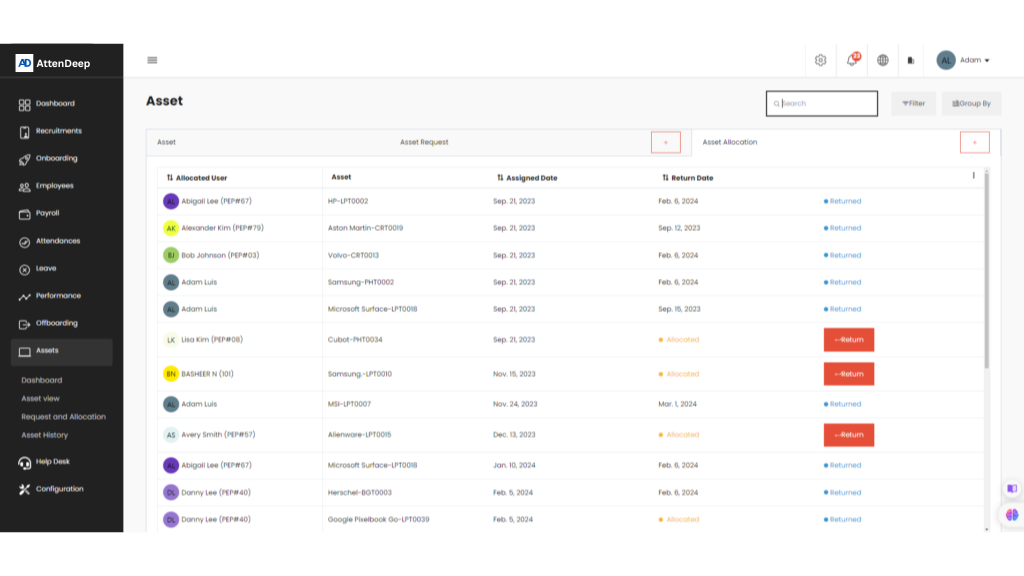
- Asset Allocations: Contains a record of all assets officially allocated to employees. Admins can manage these entries—approving new allocations, reassigning existing ones, or marking assets as returned.
Own Assets
Asset Requests
Asset Allocations
Asset Batch Number
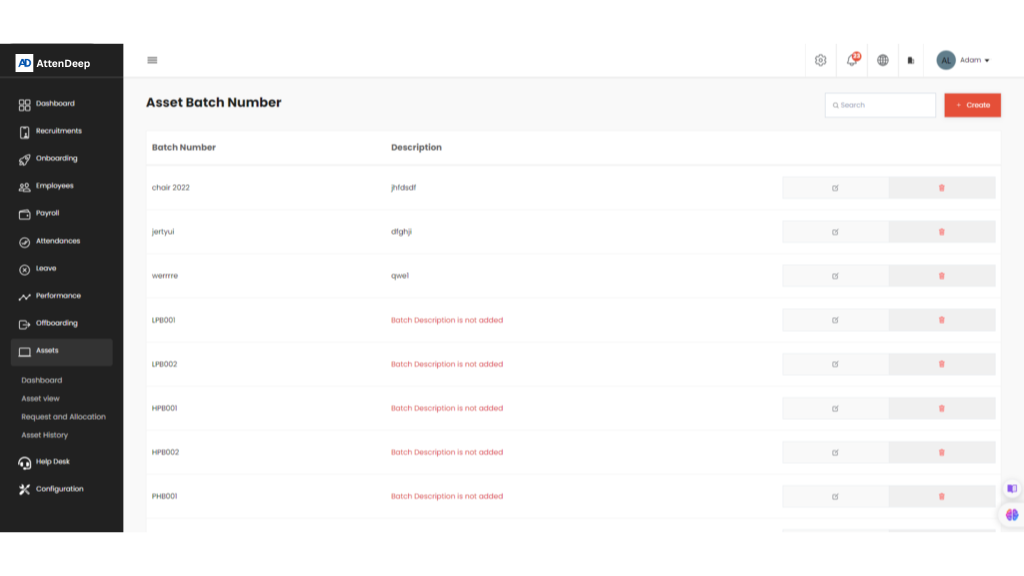
The batch number functionality enables better tracking by assigning a unique identifier to each asset. Admins and users can create, edit, and update asset records using this batch number. It simplifies searching and filtering within the system, especially when working with similar assets across multiple departments or locations.
Asset History
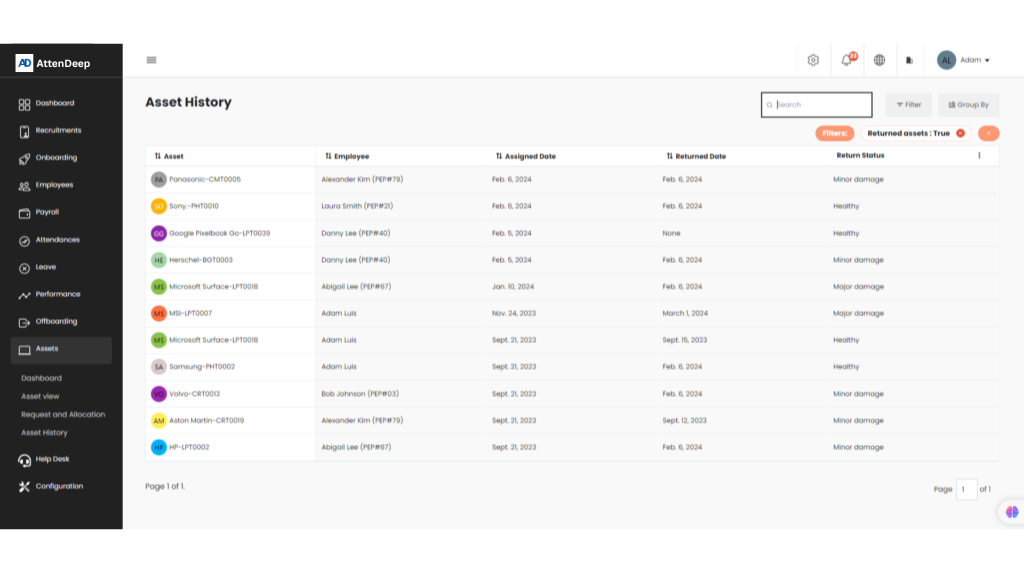
This section tracks the complete usage history of each asset. The system applies a default filter to highlight returned assets, and users can click into individual records for more detailed insights. The interface also allows for grouping, filtering, and sorting to help users locate specific events or changes in an asset’s lifecycle. It ensures full visibility into asset usage from assignment to return.