Offboarding
Offboarding describes the set of activities and workflows that take place when an employee leaves an organization. It encompasses all necessary steps to ensure a seamless handover for both the departing team member and the company. Within an HR system, offboarding modules bring together and automate these tasks for greater efficiency and consistency.
In modern organizations, offboarding is not just an administrative task—it’s a crucial process that reflects company culture and professionalism. From recovering company assets to revoking system access and facilitating knowledge transfer, every step contributes to reducing risk and ensuring a smooth transition.
AttenDeep empowers companies to conduct offboarding with minimal friction, safeguarding operational continuity and upholding the organization’s policies, while also delivering a respectful and transparent exit experience for the employee. With structured stages, automated communications, and clear visibility, it ensures compliance, avoids last-minute surprises, and preserves the employee-employer relationship.
Exit Process View
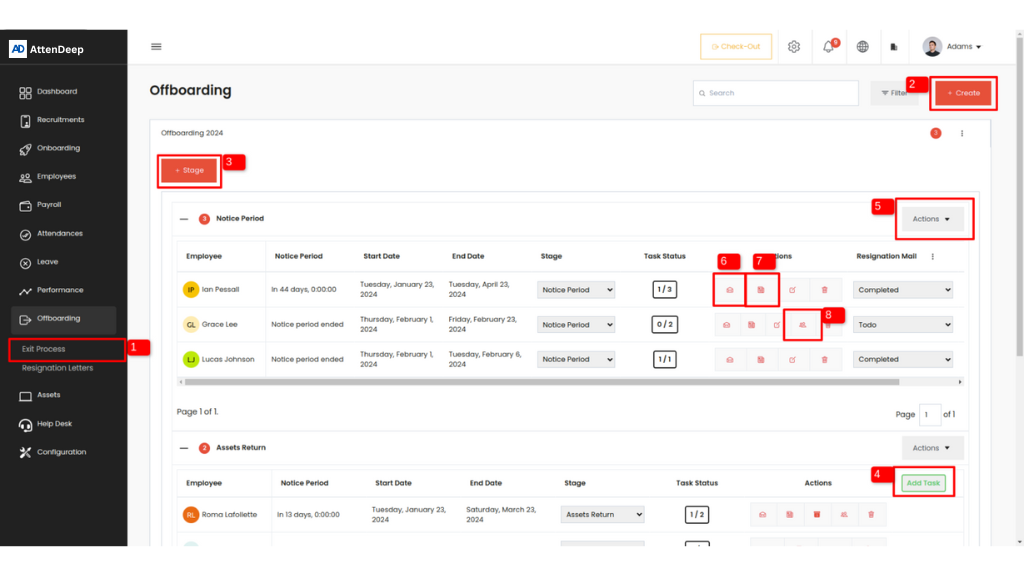
In the Exit Process View, AttenDeep groups departing employees by their current offboarding stage and displays each stage’s required actions. This visual layout makes it simple for managers to monitor progress, verify that each task is completed on schedule, and—once every item is done—automatically revoke the employee’s system access (1).
The stage-based tracking system helps reduce dependency on spreadsheets or manual tracking. Whether there are ten employees or a hundred, HR can instantly view who is at which step, what tasks remain, and what actions are pending. It creates accountability among team leads and ensures offboarding timelines are met without delays or bottlenecks.
To get Exit Process View
- Open the “Offboarding” tab: From AttenDeep’s sidebar, select “Offboarding” to access all exit-related functions.
- Select “Exit Process”: Click on “Exit Process” (1 in image.1) to access the main offboarding dashboard.
It eliminates the need to juggle between multiple systems or rely on email chains for task tracking. Everything is aligned in one unified view.
Stage Create Button
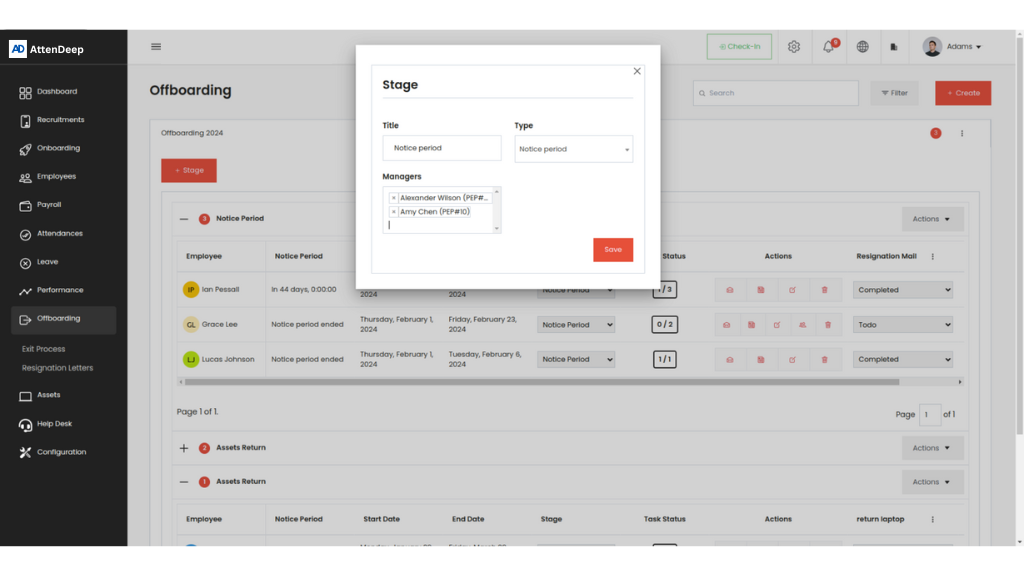
The Stage Create button (3 in image.1) lets HR define new phases in the offboarding workflow. Each stage can be given a title and assigned a responsible manager. Multiple stages such as “Notice Period,” “Asset Return,” “Exit Interview,” and “Final Settlement” can be tailored as per company policy.
Task Create Button
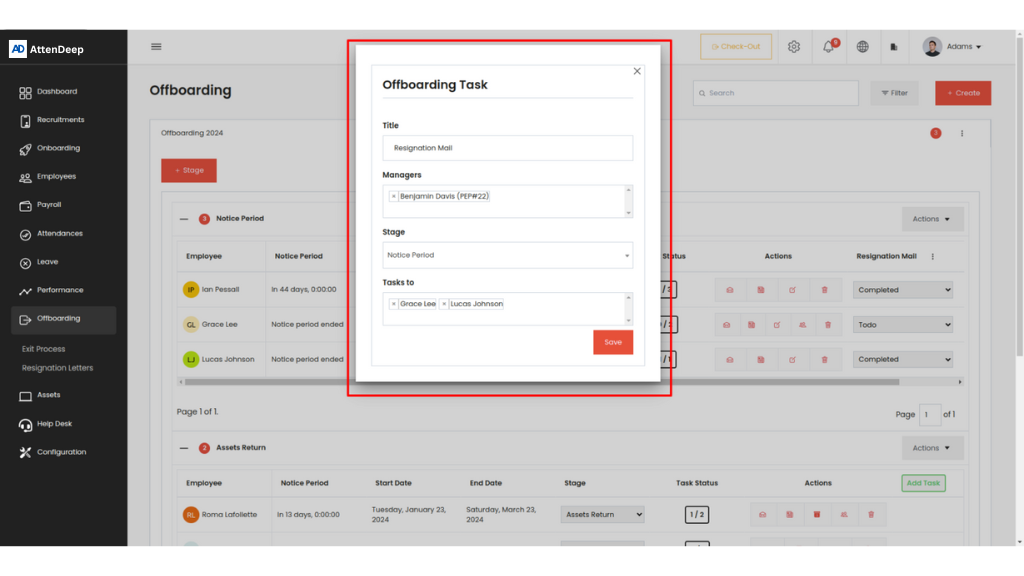
The Task Create button (4 in image.1) enables HR to introduce additional actions within any stage. You can specify which employees must complete the task, set deadlines, and track status updates.
Add Employee in ‘Actions’ Dropdown
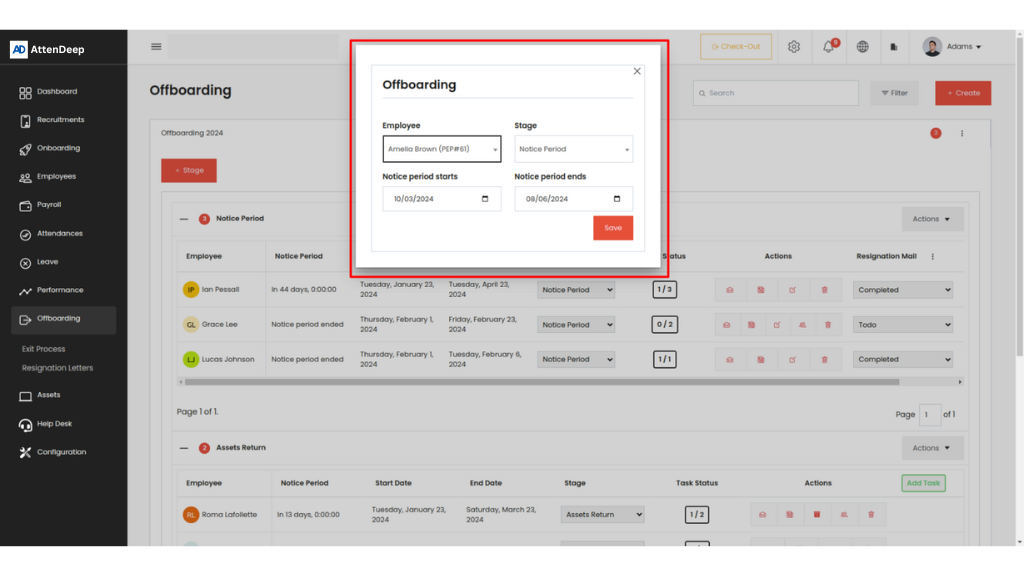
HR can enroll a resigning employee into the offboarding flow using the Add Employee option (5 in image.1), streamlining the process with appropriate task triggers and documentation uploads.
Send Mail
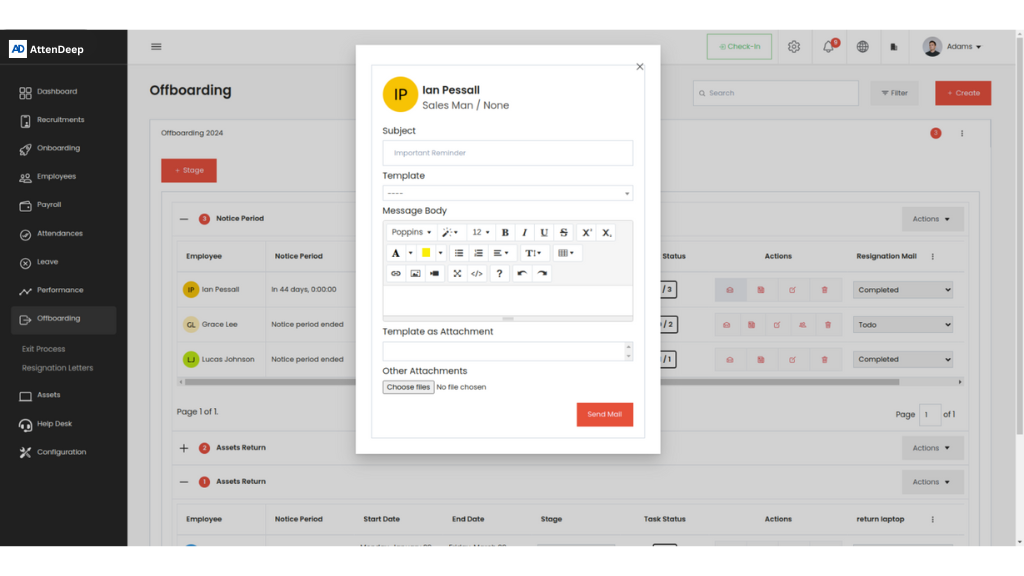
Clicking Send Mail (6 in image.1) opens a dialog with predefined templates. Emails are sent, logged, and archived automatically, saving time and ensuring professional consistency.
Add Note
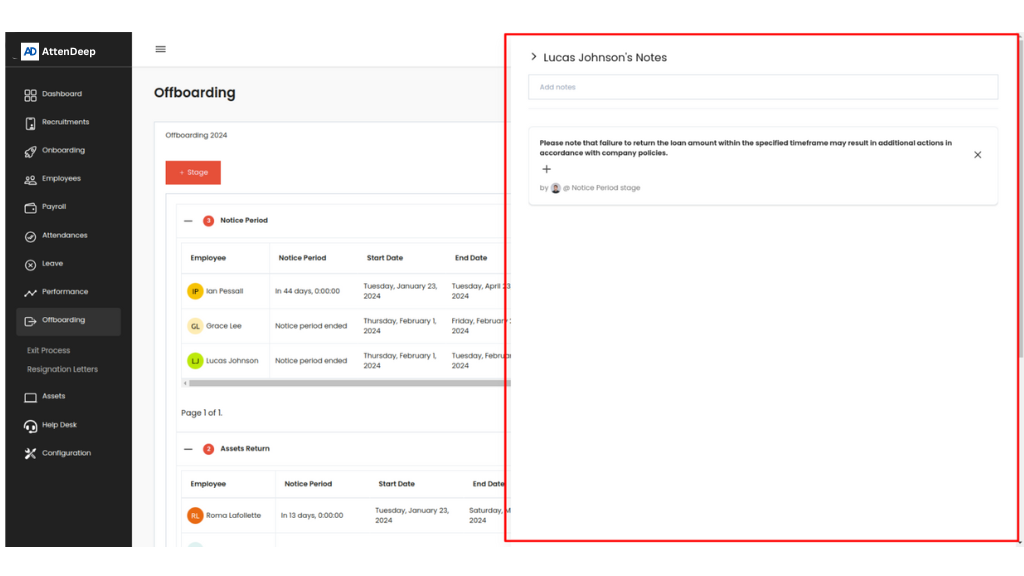
The Add Note feature (7 in image.1) allows internal reminders or communication messages to be posted to the offboarding timeline, improving transparency and coordination.
Replace the Employee’s Authorities
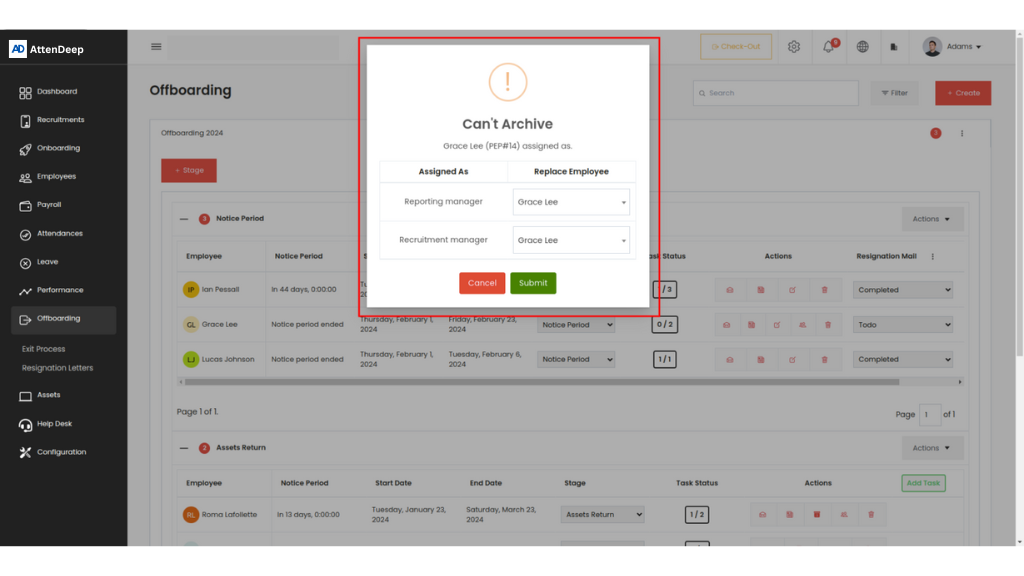
AttenDeep detects roles held by the departing employee. Using the Replace Authorities button (8 in image.1), HR can reassign responsibilities seamlessly to other team members.
Resignation Letters
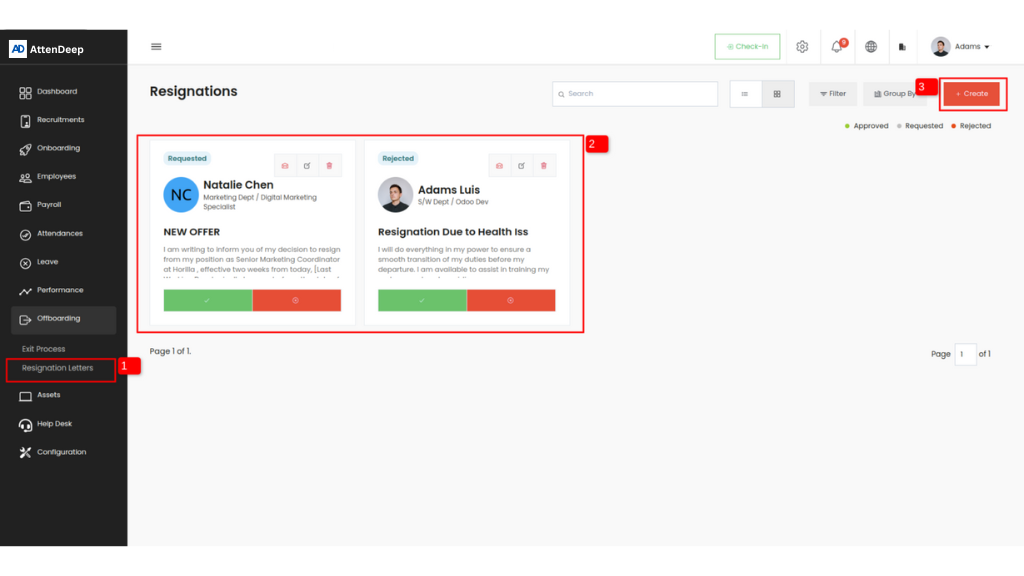
Enable the Resignation Request feature to allow employees to submit their resignations. HR can then approve or reject them, log the details, and trigger the exit process automatically.
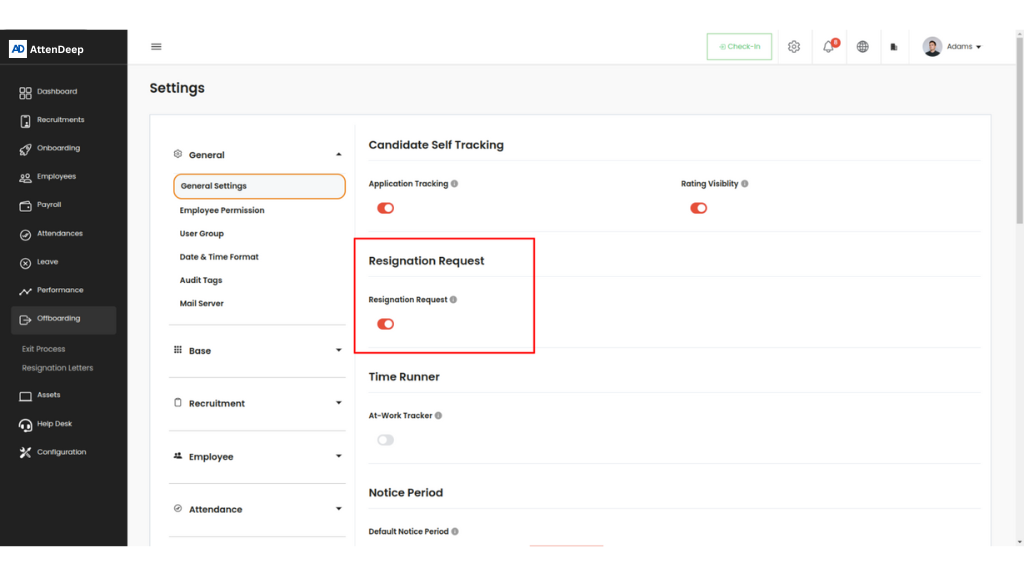
- HR‑created letters: Once enabled, resignation letters become accessible within the Offboarding section, and a dedicated ‘Resignation’ tab (2 from image.8) appears in each employee’s profile view. This enables employees to submit their resignation directly through AttenDeep by generating a resignation letter.
- HR‑created letters: Resignation letters can be generated by HR personnel by entering the employee’s name along with the planned last working day. This feature is particularly useful in cases where the employee has submitted a verbal or informal resignation and HR needs to formalize the process within the system. Once the resignation details are entered, HR can review all related information—including exit reasons, notice period, and rehire eligibility—before proceeding. The system provides clearly labeled ‘Approve’ and ‘Reject’ buttons, enabling HR to take swift action based on internal policies. All actions taken are recorded in the employee’s profile for transparency, auditability, and future reference.
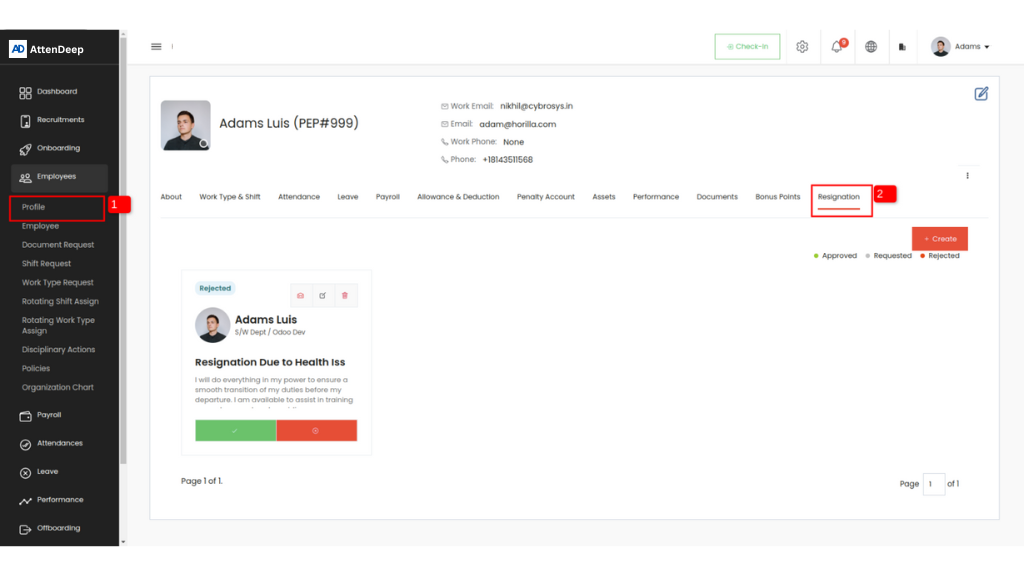

This approach creates an auditable, transparent workflow that simplifies HR responsibilities while respecting employee rights and timelines.